Nothing tests your patience quite like a spinning loading wheel when you are trying to stream your favorite show, join a work call, or win a gaming match. We have all been there—staring at a device, wondering why the internet is suddenly crawling.
A lagging connection does not always mean you need to buy a more expensive data plan. Often, the bottleneck is caused by simple, fixable issues right inside your house.
Here is a practical, step-by-step guide on how to fix slow wifi at home without spending a fortune on technical support.
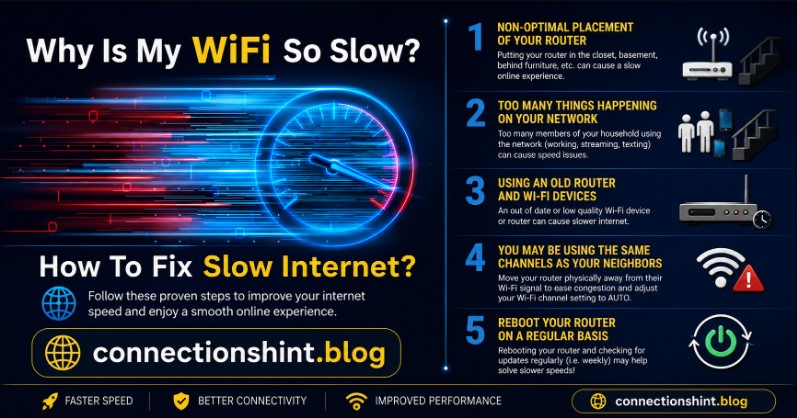
Why Is My Home Wi-Fi So Slow?
Before diving into the solutions, it helps to understand what slows down your signal. Wi-Fi travels through the air as radio waves. Just like sound waves, these signals can be blocked, deflected, or crowded out.
Also Read: AI Data Center Stocks What’s Driving the Boom in 2026
The most common culprits behind a sluggish connection include:
- Physical obstacles: Thick walls, concrete, metal appliances, and even large mirrors.
- Signal interference: Microwave ovens, baby monitors, and your neighbors’ Wi-Fi networks.
- Network congestion: Too many devices downloading, streaming, or gaming at the same time.
- Outdated hardware: An old router that simply cannot handle modern internet speeds.
How to Fix Slow Wi-Fi at Home: 9 Proven Solutions
Let’s walk through the most effective ways to get your internet speeds back to where they belong.
1. Run a Quick Speed Test First
Before changing any settings, establish a baseline. Plug a laptop directly into your modem using an Ethernet cable and run a test at a site like Speedtest.net or Fast.com.
- If the wired speed matches your plan, your internet provider is doing its job. The issue lies entirely within your home Wi-Fi setup.
- If the wired speed is terribly slow, the problem is likely an outage or an issue with your provider’s line. Give them a call.
2. The Classic Restart (Power Cycle)
It sounds cliché, but restarting your equipment works. Routers are essentially mini-computers. Over time, their memory gets clogged up with data logs and background processes.
Unplug both your modem and your router from the wall. Wait a full 30 seconds to let the capacitors clear completely, then plug them back in. Give it a few minutes to boot up. This simple step frequently clears out glitches and restores your speed instantly.
3. Move Your Router to the Ideal Location
Where is your router sitting right now? If it is tucked away inside a closet, behind the television, or floor-level in the far corner of the house, your signal is suffering.
Wi-Fi signals travel outward and downward. For the best coverage:
- Place the router in a central location of your home.
- Elevate it on a shelf or table.
- Keep it out in the open, away from thick concrete walls and heavy metal objects.
4. Switch to the 5 GHz or 6 GHz Band
Most modern routers are “dual-band” or “tri-band,” meaning they broadcast multiple Wi-Fi networks. If you see two names on your network list (like HomeNetwork and HomeNetwork_5G), make sure you are connecting to the right one.
| Wi-Fi Band | Pros | Cons | Best Used For |
| 2.4 GHz | Long range, passes through walls easily | Slower speeds, highly crowded | Smart home devices, browsing from another room |
| 5 GHz | Much faster speeds, less crowded | Shorter range, struggles with solid walls | Streaming, gaming, video conferencing |
| 6 GHz (Wi-Fi 6E/7) | Blazing fast, zero neighbor interference | Very short range, requires new devices | High-end gaming, 4K/8K streaming right near the router |
5. Change Your Wi-Fi Channel
If you live in an apartment complex or a crowded neighborhood, your neighbors’ Wi-Fi signals might be stepping on yours. Routers broadcast on specific channels, much like radio stations.
Most modern routers automatically pick the clearest channel, but they don’t always get it right. You can log into your router’s admin settings via your web browser and manually change the channel. For the 2.4 GHz band, stick strictly to channels 1, 6, or 11, as they do not overlap with one another.
6. Kick Off Unwanted Guest Devices
Sometimes the issue isn’t your hardware—it’s bandwidth theft. If too many devices are connected simultaneously, your bandwidth gets stretched thin.
Log into your router’s mobile app or admin portal to view the list of connected devices. If you see unrecognized smartphones or smart TVs, change your Wi-Fi password immediately. This forces all devices to disconnect, allowing you to re-add only the devices you actually own.
7. Manage Bandwidth-Hogging Applications
Even on your own devices, certain applications quietly consume your data. Background cloud backups, large video game updates, and torrent software can completely saturate your upload and download speeds.
If your router supports a feature called Quality of Service (QoS), turn it on. QoS allows you to prioritize specific types of traffic. For example, you can tell your router to always give priority to work video calls or online gaming over background software updates.
8. Update Your Router’s Firmware
Hardware manufacturers regularly release software updates (firmware) to fix bugs, improve performance, and patch security vulnerabilities.
Many modern routers update automatically overnight, but older models require a manual check. Open your router’s management app or log in through your browser to see if a firmware update is waiting. Installing it can provide a noticeable stability boost.
9. Consider a Wi-Fi Extender or Mesh System
If you live in a large or multi-story home, a single router might simply lack the power to reach every corner.
- Wi-Fi Extenders: Good for pushing a signal into a single dead zone, like a home office or garage.
- Mesh Wi-Fi Systems: The best choice for larger homes. A mesh system replaces your single router with multiple interconnected nodes placed around your house, creating one seamless, high-speed network everywhere.
When to Call Your Internet Service Provider (ISP)
If you have tried everything on this list and your connection is still unbearably slow, the issue is likely out of your hands. It might be time to call your ISP if:
- Your wired speed test is significantly lower than the speed you pay for.
- Your internet drops out completely multiple times a day.
- Your modem is more than four or five years old (ask your provider for a free upgraded replacement).
Conclusion
Learning how to fix slow wifi at home does not require an IT degree. By systematically moving your router to an open space, utilizing the 5 GHz band, and managing the devices using your bandwidth, you can eliminate most common internet bottlenecks. Start with the easiest fix—the simple power cycle—and work your way down the list to reclaim your high-speed connection.
FAQs
Can a dirty router slow down Wi-Fi?
Dust itself won’t block radio waves, but heavy dust buildup can block ventilation holes. This causes the router to overheat, which degrades performance and leads to random restarts or slow speeds. Keep your router clean and well-ventilated.
Why is my Wi-Fi suddenly slow on only one device?
If only one phone or laptop is struggling, the problem is that specific device. Try restarting the device, forgetting the Wi-Fi network and reconnecting, or updating its network adapter drivers.
Does having too many smart home devices slow down Wi-Fi?
Yes. Smart bulbs, plugs, and cameras constantly communicate with the internet. While they use little data individually, dozens of them together can clog up the 2.4 GHz band. Moving your phones and laptops to the 5 GHz band keeps them away from smart home clutter.
How often should I reboot my router?
Rebooting your router once a month is a great preventative measure to clear out cached data and keep the system running efficiently.
For more updates visit: Connections Hint